
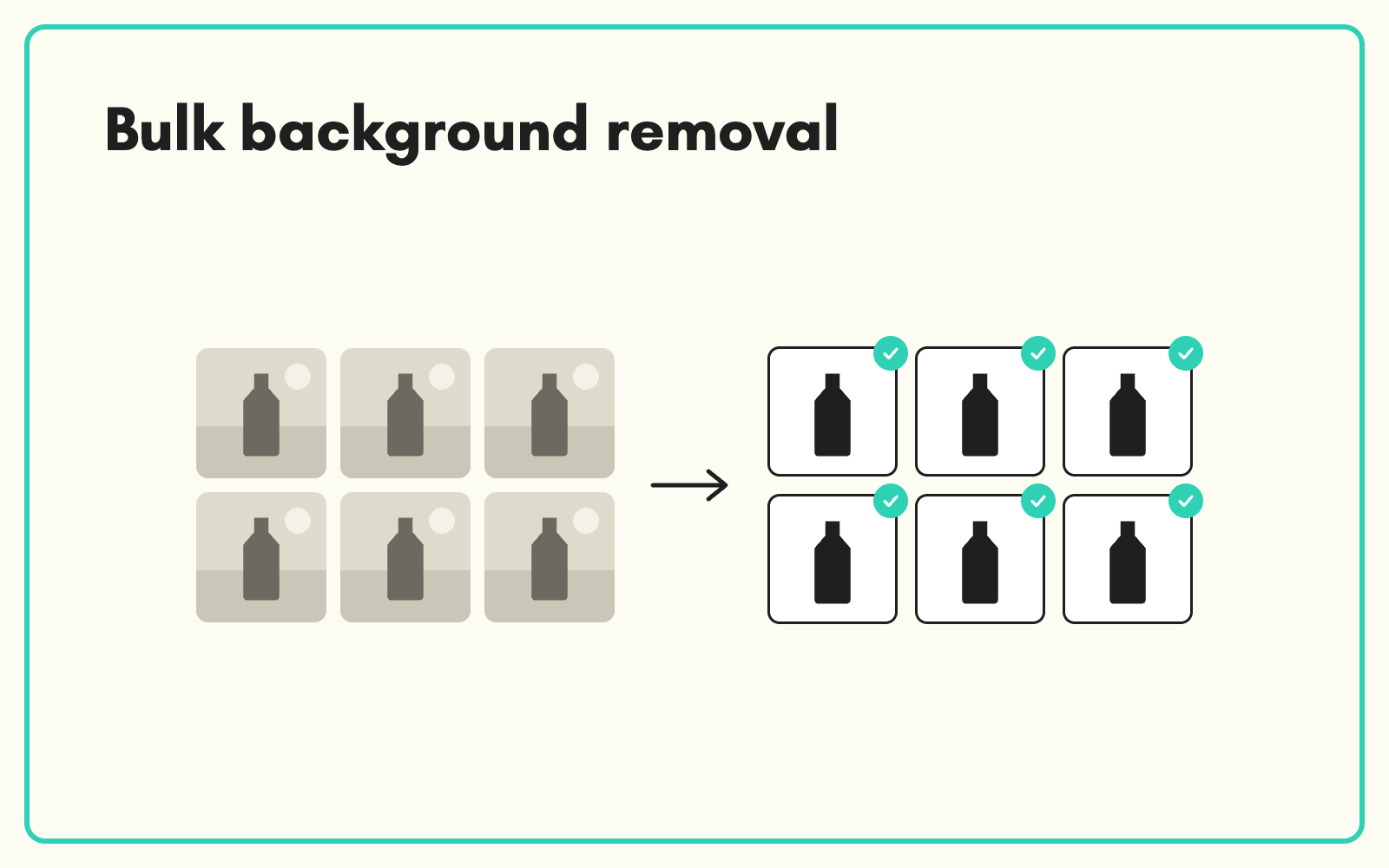
A bulk background remover turns hundreds of supplier photos into clean product cut-outs in one run, instead of one image at a time. Marketplaces want product images on a white background, and suppliers send lifestyle shots. Where your set-up includes DAM image tools, SKULaunch can process product images in bulk, including background removal, so a whole range meets marketplace image rules without a retoucher working one image at a time.
The problem
Amazon and many other marketplaces require the main image on a pure white background. Suppliers send photos on grey, in rooms, or with props. Fixing them is either manual retouching, slow and costly at volume, or a stream of single-image online tools that cannot handle thousands of files or keep them linked to products.
The second problem is what happens afterwards. Processed images end up in a download folder with new file names, and someone has to match each one back to the right SKU and the right image slot before anything can be uploaded.
Before and after
An illustrative example from a homewares range.
Before: the supplier images
640 main images: product on a kitchen counter, on grey card, with shadows and props.
After: processed in SKULaunch
- Product cut out onto a white background
- Original kept alongside the processed version, both linked to the same product
- Processed image set as the main image for marketplace channels
- Lifestyle original kept as a secondary image for the website
- Reviewed before approval
How it works in SKULaunch
- Select the images. Filter to the products or assets that need processing, for example main images in one category from one supplier.
- Process in bulk. Run background removal across the set in the DAM.
- Keep both versions. Originals stay for the website; processed images go to marketplaces.
- Review and publish. Check results, especially edges on fine detail, then approve and send with the product data.
What to expect from a bulk background remover
Cutting out the background is only part of the job. For product images, the output also needs to be consistent across a range and ready for each channel. Before you run a whole catalogue, agree these settings:
- Background. Pure white for marketplace main images. Amazon asks for RGB 255, 255, 255. A transparent PNG is useful if your website places products on its own background.
- Shadow. No shadow, or a soft natural one. Pick one approach per range so products sit the same way on a category page.
- Crop and padding. The product should fill most of the frame, with the same margin across the range.
- Aspect ratio. Square works for most marketplaces and grids. Mixed ratios make category pages look untidy.
- Colour. The product colour should not shift. Check a sample against the original, especially for whites and pastels.
Check the hard cases
Automated cut-outs handle solid products well. Glass, chrome, wire, hair and fine mesh are harder and worth reviewing individually. White or very pale products on a white background can lose their edges, so a light shadow often helps. Sort processed images so those categories are checked first, and keep the originals so anything that does not look right can be reprocessed or retouched.
Props are a separate issue. Removing the background does not remove a mug placed next to a kettle. Marketplaces generally want only the item being sold in the main image, so images with props may need a different main image or manual work.
Where it fits in the workflow
Background removal works best as a step in product set-up, not a separate project. Images arrive from suppliers through the supplier portal or an import, and are linked to the product in the DAM. Main images that do not meet the channel rules are processed, reviewed and approved alongside the rest of the product data. When the product is exported to a marketplace, the processed image goes with it. When a supplier sends a new photo, the same steps run again, so the range stays consistent without anyone tracking it by hand.
Manual versus at scale
A retoucher will always beat an automated cut-out on a single hero image. Across 640 images, or 6,400, the sensible split is to process everything in bulk, review by category, and send only the failures to a retoucher. That puts skilled time where it is needed.
Common mistakes
- Overwriting the original, so there is nothing to reprocess from.
- Processing lifestyle images that were meant for the website.
- Leaving processed files in a folder with no link to the product.
- Approving the whole batch without checking the difficult categories.
What changes
Whole ranges meet marketplace image rules, without per-image retouching, and every processed image stays linked to its product.
Common questions
What is a bulk background remover?
A tool that removes the background from many images in one run, usually replacing it with white or transparency.
Is this available on every plan?
DAM image tools depend on your set-up. Confirm availability with us.
Are originals kept?
Yes. Processed and original images are both held against the product.
Should we use white or a transparent background?
White for marketplace main images. Transparent if your website or print layouts add their own background.
Can we use it for the website too?
Yes, if you want a consistent white background across the site.
What about images with props in them?
Background removal does not remove props. Review those images and choose another main image where needed.
More on product images: the DAM linked to products, supplier image uploads, Amazon listing data, automating image processing and the DAM platform page.

